With the Heroal Import, article and price data from the "heroal_Pricelist.xlsx" can be imported into ingenious.
The import process creates new articles or updates the prices and, if necessary, texts of existing articles.
Existing articles are identified by the Heroal order number, which is created from the article number, color number and variant of the Excel table.
Preparations
Request the current price list as a .csv from Heroal.
If the file is not in .csv format, open the .xls(x) in Microsoft Excel and save it as .csv.

Converting the xlsx file to a csv file |
The Heroal import form is opened via the ingenious main menu -> System -> Heroal Import.
Settings
The following brief description provides an overview of the settings for article import.
A detailed description can be found in the chapter Heroal import settings.
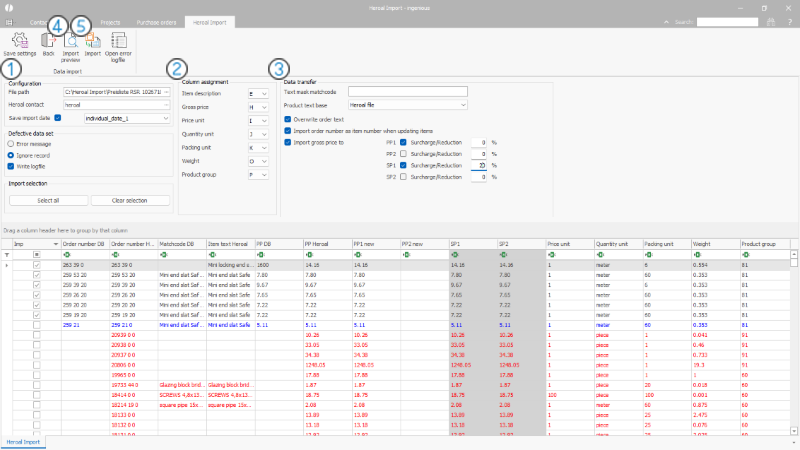
Settings and preview Heroal article import |
 Configuration
1. Specify the file path where the file is saved
2. Enter the matchcode of the Heroal contact saved in ingenious
 Column assignment
The column assignment is predefined and usually does not need to be changed.
 Data transfer
1. For new articles, the matchcode is created according to the scheme "{Name} {Article number}{Color code}{Variant}".
Alternatively, additional placeholders are available with which an individual matchcode can be created.
2. Decision whether the order text for existing items should be overwritten with the text from the current file.
3. Decision whether the Heroal order number should also be adopted as own article number.
4. Specify that the price mentioned in the file should be imported.
5. Determine into which prices of the ingenious database the Heroal price should be imported
6. Determine whether and with what surcharge or discount the prices should be imported.
 Import preview
1. Load the preview using the Import Preview button.
2. If necessary, use the filter line to restrict the article list (e.g. by product group).
3. Items uniquely found in the database using the order number are listed in black font, items with similar order numbers (e.g. missing leading zeros, etc.) are listed in blue, and new (unknown) items in red.
4. For red items, check the database to see if they are stored under a different order number; correct the order number in the database; reload the import preview.
Note: The ingenious program can also be opened twice, for example to display the article list on a second screen.
5. Select the items to be imported using the checkboxes in the first column for import
Alternatively, use the "Select all" button to select all items displayed in the list (possibly filtered).
 Import
1. Start the import using the "Import" button.
2. Check for any incorrect data records.
Possible errors: e.g. "Price on request" cannot be imported.
Further processing
For items with color codes 39 for single-color RAL powder coating, the product manager must execute a script after the item import to prepare the items for inclusion of the color codes for the order.
The script writes the necessary details and commands into measurements, service items and type attributes.
For details see chapter Heroal Import Handling RAL colors.